2FA And Passkeys Basics
2FA adds a second factor after a password, usually a one-time code sent by SMS, generated by an authenticator app, or approved by a push notification. Passkeys replace passwords with cryptographic credentials tied to a device and a relying party (the site or app you sign into). In practice, a passkey login uses a challenge-response flow: the server sends a request, and your device signs it with a private key that never leaves the device.
Phishing resistance depends on whether the attacker can reuse the second factor in real time. With many 2FA setups, the attacker can trick you into entering a code on a fake page, then immediately use that code to log in. Passkeys are designed to bind the credential to the correct domain, so a code typed into a lookalike page is not the same as a valid signature for that domain.
One practical example: a fake “Microsoft account security” page can capture a password and then ask for a code. If your 2FA is SMS or a time-based code, the attacker often receives the code quickly enough to complete login. With passkeys, the browser and device typically show a domain-specific prompt, and the signature is only valid for the domain that issued the challenge.
Common Phishing Failure Points
People often treat “2FA enabled” as a single switch, but the phishing outcome varies by factor type. SMS codes can be intercepted through SIM swap or redirected messaging, and they also work poorly against real-time phishing because the code is reusable by the attacker within a short window. TOTP codes from authenticator apps reduce some interception risks, yet they still fail against real-time phishing when the victim types the code into the attacker’s page.
Push-based approvals add another failure mode: attackers can trigger repeated login attempts and pressure the victim to approve. Some services rate-limit or require extra checks, but many still rely on user judgment, which attackers target with urgency language. Even when push prompts include the correct origin, users sometimes approve the wrong prompt during multitasking, which is a human factor rather than a cryptographic weakness.
Passkeys reduce these issues by changing the interaction model. The private key stays on the device, and the login requires a cryptographic signature tied to the site’s origin. That binding blocks the classic “enter the code on the fake page” pattern, though it does not stop every account takeover path, such as session hijacking, malware that steals session cookies, or social engineering that convinces a user to approve a legitimate prompt they should not.
Supporting technologies matter. Passkeys usually use WebAuthn and FIDO2 standards, with platform authenticators (like iOS/macOS, Android, or Windows) and roaming authenticators (like security keys). 2FA depends on the service’s implementation of SMS delivery, TOTP verification, or push approval logic, plus the service’s anti-phishing controls such as origin display, rate limits, and challenge freshness.
How To Choose And Set Up
Prefer Passkeys Where Offered
Start by enabling passkeys on accounts that support them, especially email and password managers, since compromise there cascades. Use the account’s security settings to create a passkey for each device you actually use. If you see an option for “device sync” or “iCloud Keychain” style syncing, review what devices will receive the credential; syncing can reduce friction, but it also expands the set of devices that can trigger prompts.
For a concrete check, open your browser’s address bar and confirm the domain before approving a prompt. On Chrome 128 (released in 2024), passkey flows typically show the origin clearly, but the exact UI varies by platform and browser version. If the prompt shows a domain you do not recognize, cancel it and verify the URL manually.
Harden 2FA When Passkeys Aren’t Ready
If a service still relies on 2FA, choose authenticator-app codes over SMS when available. TOTP codes are not immune to phishing, but they reduce SIM-swap exposure and avoid some carrier-level interception. Turn on “anti-phishing” features if the provider offers them, such as blocking logins from new locations without additional verification.
Set up at least two factors that are not both tied to the same phone number. A common pattern is: authenticator app plus a backup method like a recovery code stored offline. Many services generate recovery codes once; download them and store them in a password manager vault or offline paper copy. If you skip this step, you may discover the backup process during an outage, which is when it tends to be most annoying.
Use Recovery Codes Like Fire Extinguishers
Recovery codes are not a substitute for phishing resistance, but they prevent lockout when you lose a device. Create recovery codes for your primary email first, then for other high-impact accounts. Store them offline and separately from the device that holds your passkeys or authenticator app.
For example, if you generate recovery codes on 2026-01-14 and later delete the browser session, you still need the codes to regain access. If your password manager supports secure notes, store the codes there with restricted access. Avoid screenshots in shared folders, since those often end up synced to cloud drives you did not intend to expose.
Test Your Setup Without Training Attackers
Do a low-risk test by signing out of a service and logging back in using your intended method. Confirm that the passkey prompt appears only for the correct domain and that you can complete login without typing codes into random pages. If you use 2FA codes, verify that the code entry screen is on the real domain by checking the URL carefully.
Do not “test” by clicking links from unknown senders. Instead, use the service’s own login page and your own bookmarks. Attackers benefit from any interaction that teaches them your workflow, and your goal is to validate your defenses, not to rehearse an attacker’s script.
Educational Case Examples
Scenario A: SMS 2FA on a work email. A user receives a message that looks like an internal password reset. The attacker collects the password and then asks for the SMS code. The user reads the SMS and types the code into the attacker’s page. The attacker logs in successfully because the code is valid for the attacker’s session at that moment.
Scenario B: Passkeys on the same account. The same attacker sends a lookalike login page. The user enters the email address, but the passkey flow requires a cryptographic signature for the real origin. The device prompt shows the correct domain, and the user cancels when the origin does not match. The attacker cannot reuse a typed value to complete login because the signature is not transferable across domains.
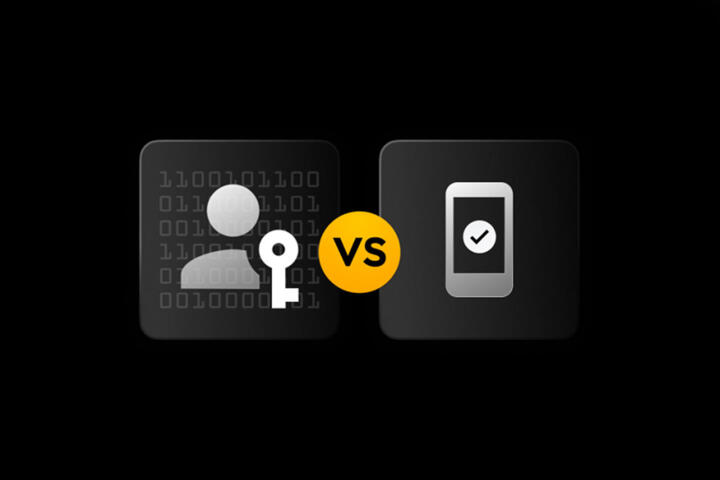
Passkeys Vs 2FA Comparison
| Category | SMS 2FA | Authenticator App (TOTP) | Passkeys (WebAuthn/FIDO2) |
|---|---|---|---|
| Phishing page reuse | Often succeeds with real-time prompts for codes | Often succeeds when codes are entered on fake pages | Designed to fail across domains due to origin binding |
| Key material exposure | Code is transmitted; interception risks exist | Shared secret lives in authenticator app; codes are short-lived | Private key stays on device; signature is generated locally |
| Recovery and lockout | Phone number loss can block access | Lost device can block access without backups | Multiple devices and recovery options matter |
| User behavior dependency | High; user must not share codes | High; user must not type codes on fake pages | Medium; user must approve correct origin prompts |
Common Mistakes That Reduce Protection
One frequent mistake is enabling passkeys but leaving weak recovery paths. If your account recovery still depends on SMS to a compromised phone number, phishing can shift from “code entry” to “account recovery takeover.” Another mistake is creating only one passkey on one device, then losing that device without recovery codes or a second authenticator.
People also confuse “2FA enabled” with “phishing-resistant.” If the second factor is a code that the attacker can collect in real time, the attacker’s workflow still works. A second factor that requires user approval can also be undermined by prompt fatigue, especially when attackers send repeated login attempts.
Finally, users sometimes store recovery codes in the same place as the password, such as an unprotected notes app synced to multiple devices. That arrangement turns a recovery mechanism into a single point of failure. A small aside: many password managers show versioned history, so deleting a note may not remove it from backups quickly, which can matter if someone later gains access to your account.
FAQ
Do Passkeys Stop All Phishing?
Passkeys block the common “enter a code on a fake login page” pattern by binding the credential to the correct origin. They do not stop attacks that steal sessions, install malware, or trick you into approving a legitimate prompt you should not approve.
Is SMS 2FA Safer Than No 2FA?
SMS 2FA reduces risk compared with password-only logins, but it remains vulnerable to real-time phishing and some phone-number takeover methods. For accounts that support it, authenticator-app codes or passkeys usually reduce phishing success rates.
Can Attackers Use a Passkey From Another Device?
Passkeys are tied to the credential and the origin, and the private key is not meant to be copied to other devices. If you sync passkeys across devices through a platform feature, the credential may exist on multiple devices, so device security still matters.
What Happens If I Lose My Phone?
With 2FA, you need backup codes or a second factor method to regain access. With passkeys, you need recovery options and often a second device; losing the only device without recovery can lock you out.
Should I Keep 2FA After Adding Passkeys?
Many services let you keep multiple factors. Keeping a backup factor can reduce lockout risk, but you should review whether the backup uses SMS or another method that could be targeted during account recovery.
Author's Insight
Passkeys change phishing resistance by moving from “shared codes” to “origin-bound cryptographic signatures.” That shift reduces the attacker’s ability to reuse a victim-entered value on a lookalike page. 2FA can still be effective against password-only attacks, yet code-based 2FA often fails against real-time phishing because the attacker receives the second factor in the same session.
When choosing between them, the practical question is not the label but the factor type, recovery path, and how the service handles origin display and rate limits. A careful setup includes recovery codes stored offline and at least two ways to authenticate without relying on a single phone number.
Key Takeaways
- SMS and TOTP 2FA often fail against real-time phishing because attackers can collect the second factor during the login flow.
- Passkeys are designed to resist phishing by binding authentication to the correct domain using WebAuthn/FIDO2-style cryptography.
- Recovery paths decide whether you stay locked out or regain access after device loss; store recovery codes offline.
- Validate your setup by signing out and logging back in on the real site, checking the domain shown in the prompt.